Edge of Memories Controls Guide
Controller-first setup, remapping in the updated demo, and habits that make real-time combat readable.
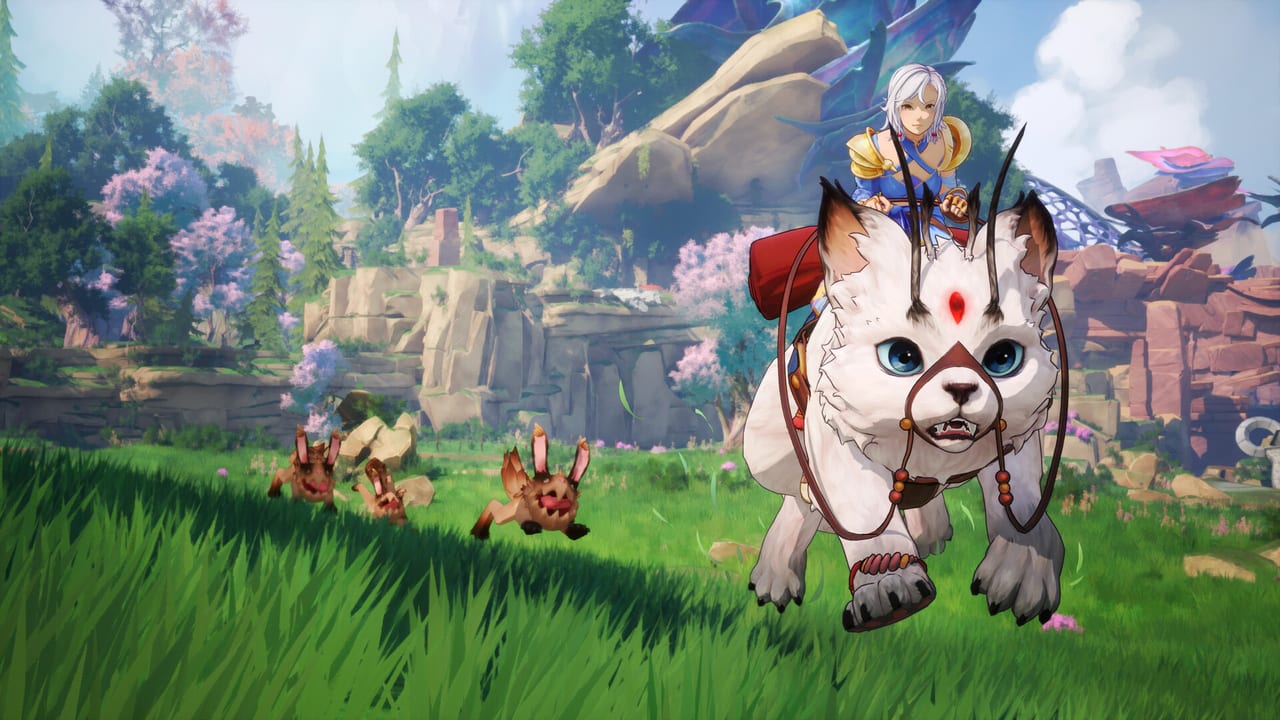
Edge of Memories is built as a controller-first action RPG with full controller support on the platforms that matter for launch: PlayStation 5, Xbox Series X|S, and PC via Steam. Keyboard and mouse are also available on PC, but most of the combat language—light and heavy strings, dodge timing, ally skill calls, and Black Beast conversion—reads cleanly on a gamepad. This page helps you set inputs before you stress about advanced Systems.
For the bigger onboarding checklist, see Getting Started. For what those buttons are trying to accomplish in a fight, continue with the Combat Guide.
Recommended starting point: use a controller
If you own a DualSense, Xbox pad, or another Steam Input-compatible controller, start there. Real-time combo games reward analog movement, shoulder-button modifiers, and face-button attack cadence. A pad also matches how the game is presented in trailers and demo footage, which makes video learning transfer more easily.
On PC, confirm the controller is detected before you enter Act 1 story beats. If Steam overlays or competing input software fight for focus, close extras until the pad responds consistently in menus and combat.
Remapping in the updated demo
The November 2026 Steam demo return added customizable controller button mappings after community feedback. That matters more than it sounds. If a default face-button layout fights your muscle memory from other action RPGs, remap early instead of “getting used to” a bad bind for two hours and then quitting.
Remap with combat priorities in mind:
- Light attack on your most reliable confirm button.
- Heavy attack on a button you will not panic-mash.
- Dodge on a shoulder or face button you can hit without losing the stick.
- Ally skills / Strategy actions on inputs you can reach while still steering.
- Potion use somewhere reachable under pressure without opening a deep menu mid-swing.
After remapping, fight one trash pack before continuing the story. If your fingers still hesitate, adjust again immediately. Comfort is a combat stat.
Accessibility and comfort toggles
The updated demo also lets you disable motion blur. If blur makes dodge reads harder—especially on busy Corrosion enemies—turn it off. Readable animations beat cinematic smear when you are learning timing windows. Pair that with a stable frame pace on PC: a slightly lower graphical preset with consistent timing is kinder to muscle memory than max settings with hitching.
Camera sensitivity is personal. If you overshoot targets during multi-enemy fights, lower look speed until you can track a single elite without hunting the reticle. Raise it later once your dodge rhythm is automatic.
Keyboard and mouse on PC
Keyboard and mouse are supported for players who prefer that setup or who are testing without a pad. Expect to bind movement, light/heavy attacks, dodge, interaction, potion use, and ally skill calls to keys you can reach without looking down. Mouse look can feel precise in open exploration, but combo cadence still benefits from intentional key placement—avoid parking dodge on a distant key you will miss during a slam telegraph.
If you switch between keyboard and controller mid-session, re-check the active device before a boss. Mixed input focus is a common way to eat an avoidable hit.
Practical combat input habits
Controls only matter if they support the fight loop taught in the Combat Guide:
- Do not mash light forever. Tap with rhythm so you can cancel into dodge when a tell appears.
- Commit to heavy attacks on purpose. Because heavies are slower, bind them where an accidental press is unlikely.
- Dodge once, then punish. Binding dodge next to movement helps, but discipline matters more than the glyph on the button.
- Call ally skills with a reason. Your bind should be fast; your decision should still be “break / interrupt / exploit,” not “button is glowing.”
- Practice potion use outside of danger. At a campsite stretch, equip the kit you want, then rehearse the consume input so you do not fumble it during the first boss.
- Open Strategy menus between fights. Swapping loadouts mid-chaos is how people eat telegraphs. Change Strategies at campsites or after a clear.
Exploration inputs you will use constantly
Act 1 is not only arenas. You will interact with campsites for rest and alchemy, shove or destroy environmental rocks, burn obstacles with elemental tools, and eventually rely on Nekaroo for traversal in the wider game. Bind interact and mount-related actions somewhere obvious. Missing a rest prompt because interact shares a contested key is an avoidable setback.
When alchemy prompts appear, slow down. Crafting potion kits and choosing which kit to equip happens at camp—treat that menu like part of your control mastery, not an interruption.
A ten-minute setup checklist
- Connect and verify your controller (or finalize keyboard binds).
- Remap light, heavy, dodge, ally skill, and potion to comfortable positions.
- Disable motion blur if it hurts readability.
- Set camera sensitivity to a level where you can track one target cleanly.
- Enter a small fight and practice light → heavy → dodge → skill once without taking damage.
- Rest at a campsite, craft or equip a potion kit, and confirm the consume input.
- Only then continue the story route in the Demo Walkthrough.
After controls feel invisible
The goal is for inputs to disappear so you can think about Strategies, Echoes, part breaks, and Black Beast timing. When you no longer look at the pad during a basic pack, move on to deeper combat study and Act 1 routing. If anything still feels awkward, return here and remap again—especially after the November demo changes, where remapping exists specifically so you do not have to fight the default layout.
Browse the Guides Hub if you want the full reading order, or jump straight back to Getting Started for release timing and first-hour goals.
Frequently Asked Questions
Quick answers for Edge of Memories players.
Does Edge of Memories support controllers on PC?
Yes. The game has full controller support. A gamepad is the recommended way to learn real-time combat, though keyboard and mouse are also available on Steam.
Can I remap controls in the demo?
Yes. The November 2026 updated Steam demo adds customizable controller button mappings, so you can move light, heavy, dodge, skills, and potions to comfortable binds.
Should I turn motion blur off?
If blur makes attack telegraphs harder to read, disable it. The updated demo includes a motion-blur toggle specifically for comfort and clarity.
Keyboard and mouse or controller?
Controller-first is the smoother learning path for most players, but keyboard and mouse work if you bind dodge, attacks, potions, and ally skills within easy reach.
What should I practice after remapping?
Run one short combat loop—light, heavy, dodge, ally skill, potion—before continuing the story, then study the Combat Guide for Strategy and Black Beast timing.